

About two minutes. You need Windows and MetaTrader 5. The setup copies one file into your MetaTrader 5 folder. It does not need admin rights and never touches your trades.
The quickest way. Works with every MetaTrader 5 on your PC.
After checkout you get a download link by email. Save 99R_VoicePlayer_Setup.exe and double-click it.
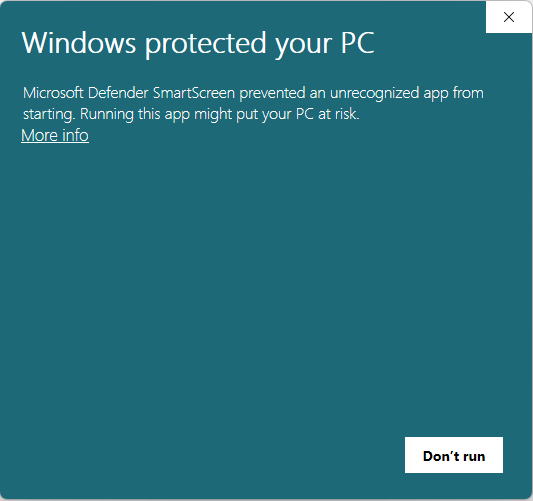
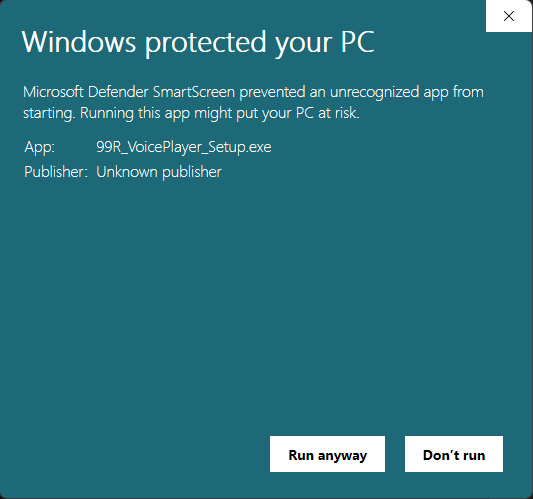
Windows shows this blue box for new apps from small developers. Click More info, then Run anyway.
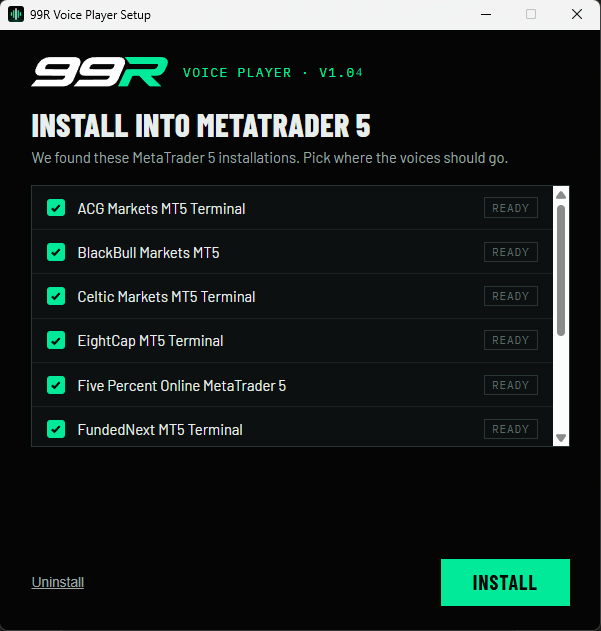
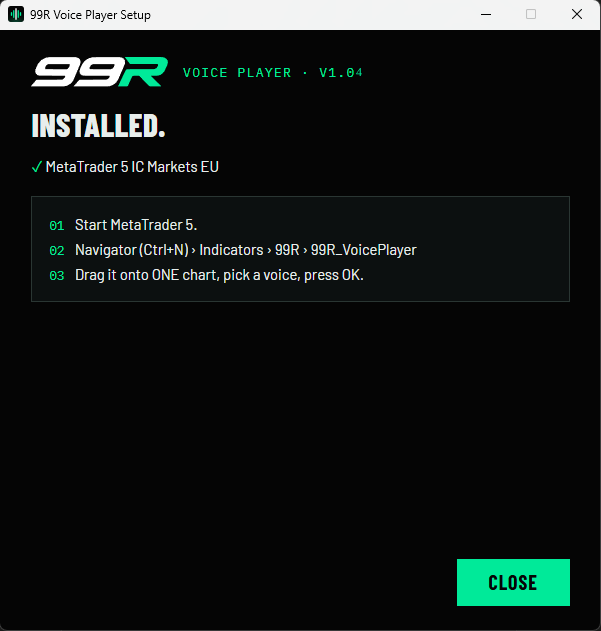
The setup lists every MetaTrader 5 it finds. Tick the ones you use and press Install. If MetaTrader 5 is open, close it. The setup waits and continues by itself.
For Mac, portable MetaTrader 5, or if the setup does not find your terminal.
In MetaTrader 5: File › Open Data Folder.
Open MQL5 › Indicators and create a folder named 99R.
Copy 99R_VoicePlayer.ex5 from your download into that folder.
Back in MetaTrader 5, right-click the Navigator › Refresh (or restart MetaTrader 5). Then follow step 04 above.
The things people ask most.
In MetaTrader 5 go to Tools › Options › Events and tick “Enable”. Check the Windows volume. On the panel, the sound button must not say MUTED: it shows the volume, for example SOUND 100%. A red dot means the sound could not be played.
Click the SOUND button on the panel: 100% › 75% › 50% › 25% › muted. You hear each new level right away. The starting volume is also in the indicator settings.
Yes. Press ▶ TEST on the panel. Each click plays the next line of the selected character, in the order a trade unfolds.
If you also run 99R Control, switch off its built-in voice (Voice master OFF in its settings). Only one Voice Player speaks per terminal: a second copy pauses itself.
Drag the panel by its “99R VOICE” label, or click the label to fold it into a small bar. It remembers the position.
Tick all of them in the setup. It installs into each one.
No. It only listens to your account and reacts out loud. It never opens, changes or closes a trade.
Run the setup again, tick the terminals and click Uninstall. Or delete 99R_VoicePlayer.ex5 from MQL5 › Indicators › 99R. The player also keeps two small sound files in MQL5 › Files (99R_VoicePlayer_a.wav, _b.wav); you can delete those too.
Write to hello@project99r.com with a screenshot. We’ll get back to you.